
Fundamentals · Updated in 2026
60, 120, 165, 240, 330 Hz: the refresh rate explained
It is the most heavily promoted number on gaming monitors, and the most misunderstood everywhere else. It does not make an image "prettier": it makes movement more continuous. Provided you have something to feed it with.
What a hertz measures
The refresh rate is the number of times per second the monitor redraws its image. At 60 Hz, sixty times; at 240 Hz, four times as often. On a still image, it changes strictly nothing: text at 240 Hz is no crisper than at 60. The difference only appears on what moves — a cursor, a window you drag, a game scene.
Two ceilings, not one
A 165 Hz monitor displays at most 165 frames per second; the machine still has to produce that many. If your graphics card computes 80, you will see 80. The monitor's rate is a ceiling, not a guarantee: it is the most costly misunderstanding at the moment of purchase.
Adaptive sync
When the number of frames produced varies, the monitor and the machine fall out of step: the image tears horizontally. Adaptive sync technologies — FreeSync, G-Sync, VRR — make the monitor's frequency follow the game's. The Q34W supports FreeSync and G-Sync; the P27Z has VRR adaptive sync.
Dual mode, the genuinely good idea
Two monitors in the range save you having to choose. The P27Z displays native 5K at 180 Hz, then switches to 2560 × 1440 at 330 Hz: exactly half its resolution, so with no blurry interpolation. The P32T does the same between 4K at 160 Hz and Full HD at 320 Hz. You work at maximum resolution and you play at maximum refresh rate, on the same panel.
Mind the cable
A high refresh rate demands bandwidth. A 165 Hz monitor connected over HDMI 2.0 will display 60 Hz without warning: that is the case of the Q34W and P40K, whose full refresh rate goes over DisplayPort or USB-C. And on Windows, the maximum refresh rate has to be selected manually in the display settings. The detail is in the connectivity guide.
In pictures
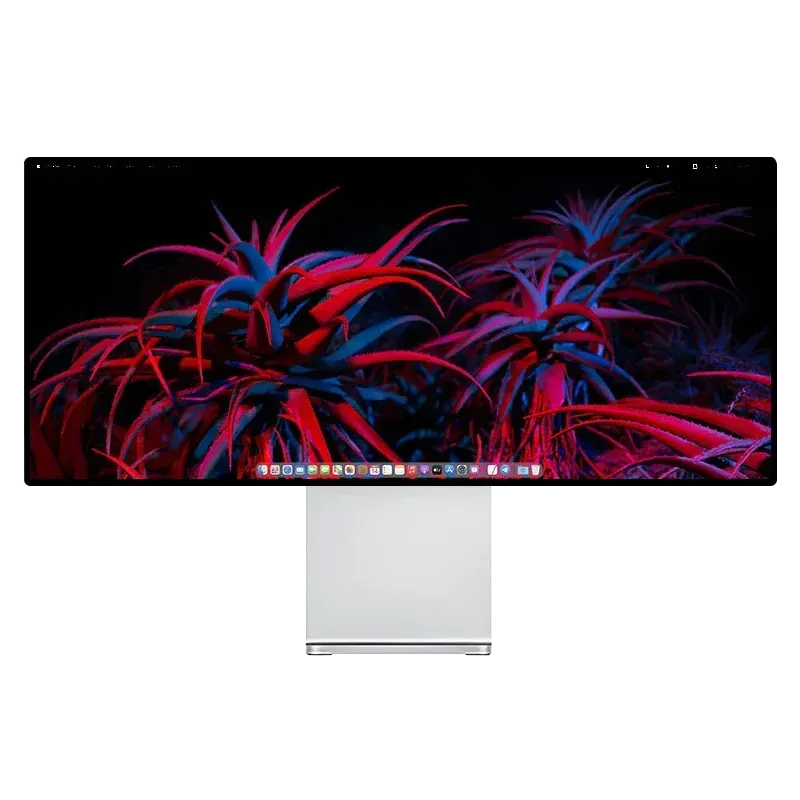
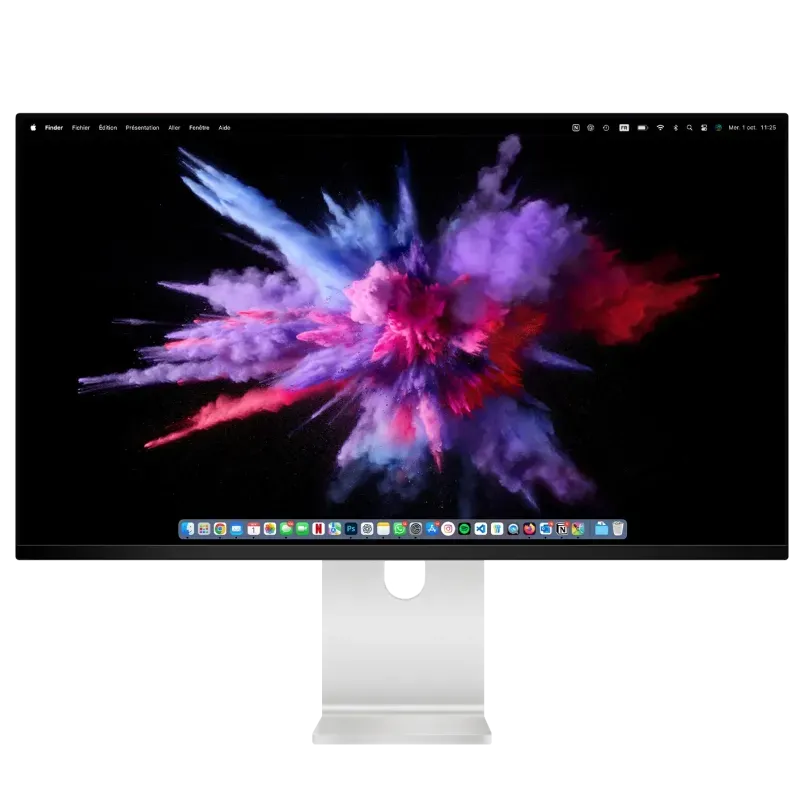
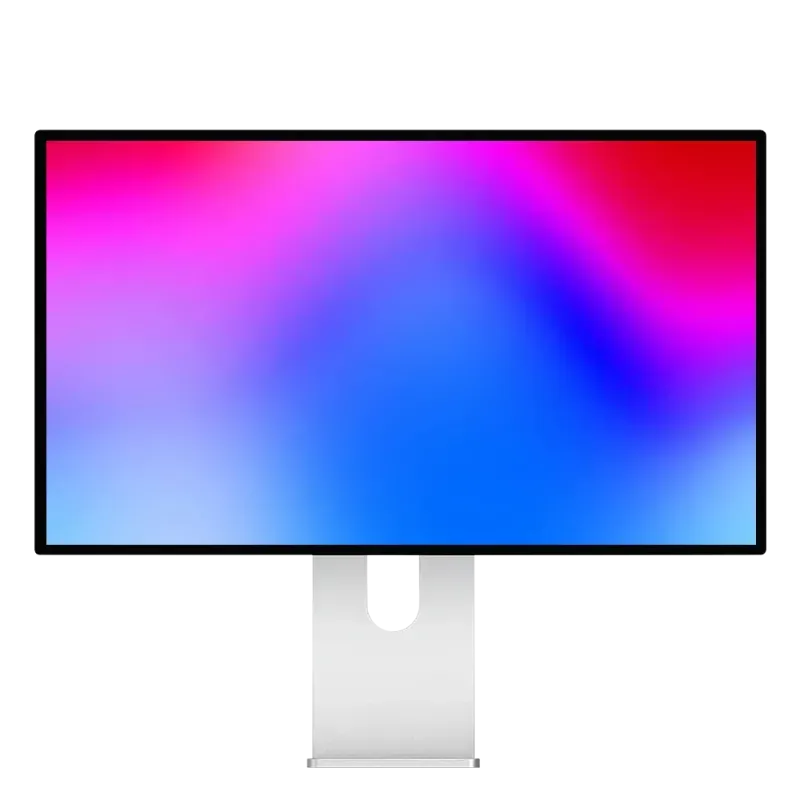
From 165 to 330 Hz
Three monitors, three ways of approaching smoothness.
Reference points
How many hertz for which use
| Use | Sufficient | Comfortable | Models |
|---|---|---|---|
| Office work, code, web | 60 Hz | 75 Hz | G27P, P27L, G32P |
| Photo, video editing | 60 Hz | 120 Hz | G32P, P40K |
| Single-player games, simulation | 60 Hz | 120–144 Hz | P32K, P40K, P32T |
| Versatile gamer | 120 Hz | 144–165 Hz | P27D, P32K, Q34W |
| Competitive FPS | 165 Hz | 240 Hz and above | Q32S, P27Z, P32T |
Beyond 120 Hz, the gain becomes hard to perceive outside fast games, whereas resolution is visible all the time.
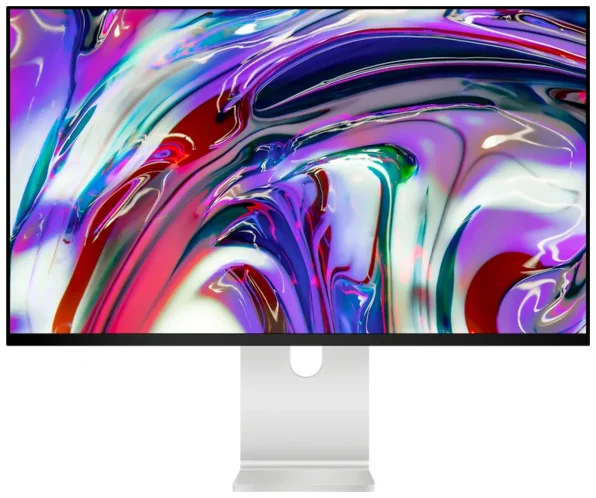
New — Kuycon P27ZB
27" 4K (3840 × 2160) · 240 Hz (480 Hz FHD) · Nano IPS Black · 939 €
See the P27ZB ›FAQ
Refresh rate: frequently asked questions
Does 240 Hz make the image crisper?
No. On a still image, refresh rate changes nothing: resolution is what determines sharpness. Hertz act only on the smoothness of movement.
Do you need that many hertz for work?
No. 60 to 75 Hz is enough for office work, code and photography. Better to put the budget into pixel density, which is visible all the time.
My 165 Hz monitor displays 60 Hz: why?
Almost always the cable or the setting. On the Q34W and P40K, HDMI 2.0 does not provide the necessary bandwidth: switch to DisplayPort or USB-C. Then select the maximum refresh rate in the Windows display settings.
What is adaptive sync for?
To avoid image tearing when the number of frames produced varies: the monitor locks its frequency to the game's. The Q34W supports FreeSync and G-Sync, the P27Z VRR sync.
What is a dual mode?
A switch between high resolution and high refresh rate on the same panel. The P27Z goes from 5K at 180 Hz to QHD at 330 Hz, exactly half its resolution, so with no interpolation.
The refresh rate that matches your machine
From 60 Hz for work to 330 Hz in eSports mode, with dual modes that save you having to choose.
See all Kuycon monitorsGuide written in August 2026. Refresh rates and connectivity vary by model; check the product page before buying.